
How to Track Highways at High Altitude With Flip
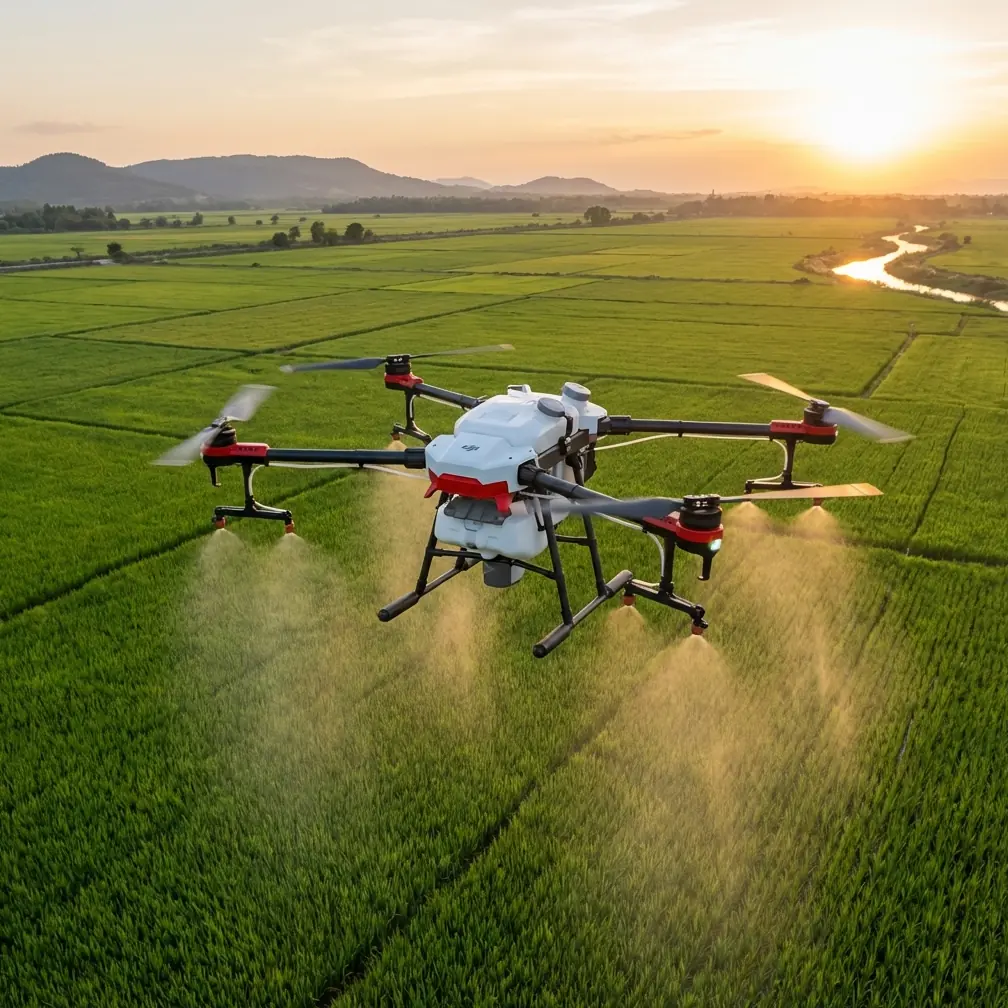
How to Track Highways at High Altitude With Flip
META: Learn how to use the Flip drone for tracking highways at high altitude. Expert tips on antenna positioning, ActiveTrack settings, and D-Log color for stunning aerial footage.
TL;DR
- Antenna positioning is the single most critical factor for maintaining reliable signal when tracking highways at altitude—orient them perpendicular to the drone's flight path for maximum range.
- The Flip's ActiveTrack and Subject tracking capabilities allow autonomous highway following, freeing the pilot to focus on signal strength and airspace safety.
- Shooting in D-Log color profile preserves highlight and shadow detail across sun-baked asphalt and shaded overpasses simultaneously.
- QuickShots and Hyperlapse modes transform routine highway surveys into cinematic deliverables clients actually want to share.
Why Highway Tracking at Altitude Is Uniquely Challenging
Highway tracking pushes a drone's capabilities in ways that hover-and-shoot missions never will. You're dealing with a subject that stretches for miles, sits inside complex airspace corridors, and reflects heat that warps sensor readings. The Flip is built for exactly this kind of sustained, linear tracking—but only if you configure it correctly.
This guide walks you through every setting, every physical adjustment, and every creative decision you need to make before, during, and after a high-altitude highway tracking mission. By the end, you'll have a repeatable workflow that delivers stable footage, reliable telemetry, and professional-grade results.
By Chris Park, Creator
Step 1: Pre-Flight Planning for Highway Corridors
Check Airspace and Permits
Highways often run through or near controlled airspace. Before you even unpack the Flip, verify:
- NOTAM status for your flight corridor
- Any temporary flight restrictions tied to construction or emergency operations
- Maximum allowable altitude for your specific GPS coordinates
- Local regulations on beyond-visual-line-of-sight (BVLOS) operations, if applicable
Scout the Route Digitally
Use satellite imagery to identify overpasses, interchanges, and power line crossings along your planned tracking path. These are the points where you'll need the Flip's obstacle avoidance system engaged at its most aggressive setting.
Mark GPS waypoints for:
- Mission start and end points
- Altitude transition zones (where terrain elevation changes)
- Known RF interference sources (cell towers, substations)
Pro Tip: Export your planned route as KML and load it onto a tablet so your visual observer can track the Flip's position against the highway in real time—even when the drone is beyond comfortable visual range.
Step 2: Antenna Positioning for Maximum Range
This is where most pilots lose their missions. Antenna positioning is not a "set it and forget it" task—it's an active discipline throughout the flight.
The Perpendicular Rule
The Flip's controller antennas radiate signal from their flat faces, not from the tips. For maximum gain, keep the flat face of each antenna pointed directly at the drone. At high altitude and long range, this means:
- Tilt antennas forward at roughly 45 degrees when the Flip is far downrange and high
- Never point the antenna tips at the drone—this creates a signal null
- As the drone moves along the highway, rotate your body to maintain perpendicular orientation rather than just adjusting the sticks
Dealing With Multipath Interference
Highways are surrounded by metal vehicles, guardrails, and signage—all of which bounce RF signals and create multipath interference. To mitigate this:
- Position yourself elevated above the road surface whenever possible (a nearby hill, parking garage roof, or overpass)
- Avoid standing directly next to large metal structures
- Keep the controller's antennas at least 30 cm away from your body
Expert Insight: On long highway tracking runs exceeding 3 km, I reposition my ground station at least once mid-mission. I plan a hover waypoint at the midpoint, drive to a pre-scouted secondary position, re-confirm link quality, then resume. The extra ten minutes of planning eliminates the number-one cause of signal loss on linear missions.
Step 3: Configuring ActiveTrack and Subject Tracking
The Flip's Subject tracking system can lock onto a moving vehicle, a lane boundary, or even the highway's center median. For highway tracking at altitude, here's what works best.
ActiveTrack Settings
| Parameter | Recommended Setting | Why |
|---|---|---|
| Tracking Mode | Parallel | Keeps the Flip offset from the highway centerline, reducing risk of overflying traffic |
| Tracking Speed | Auto | Allows the Flip to match variable highway traffic speeds up to its maximum velocity |
| Obstacle Avoidance | Aggressive (APAS 5.0) | Overpasses and signage demand maximum sensor responsiveness |
| Altitude Hold | Fixed | Prevents altitude drift caused by thermal updrafts off asphalt |
| Subject Size | Large | Highways are wide targets—large subject size prevents lock-on drift to individual vehicles |
| Gimbal Behavior | Auto-follow with manual override | Lets ActiveTrack handle panning while you retain pitch control for composition |
Locking On Correctly
Draw your tracking box around a static highway feature (lane markings, median barrier) rather than a single moving car. This gives ActiveTrack a consistent, high-contrast target that won't exit the frame unpredictably.
If you need to track a specific vehicle—say, a client's fleet truck for commercial footage—switch to Spotlight mode so the Flip keeps the vehicle centered while you manually fly the path.
Step 4: Camera Settings for High-Altitude Highway Footage
Why D-Log Changes Everything
At high altitude, you're simultaneously capturing:
- Bright, reflective asphalt under direct sun
- Deep shadows beneath overpasses and tree canopy
- Sky and horizon with extreme dynamic range
D-Log captures approximately 2-3 extra stops of dynamic range compared to standard color profiles. This means you retain detail in both the white lane markings and the shadowed underpass—detail that would be permanently clipped in a normal profile.
Recommended Camera Configuration
- Resolution: 4K at 30fps for survey deliverables; 4K at 60fps if slow-motion analysis is needed
- Shutter Speed: Double your frame rate (1/60 for 30fps, 1/120 for 60fps)
- ISO: Keep at 100 and use ND filters to control exposure
- White Balance: Manual, set to 5600K for daylight consistency across the entire run
- Color Profile: D-Log
ND Filter Selection
| Lighting Condition | Recommended ND Filter | Resulting Effect |
|---|---|---|
| Overcast / early morning | ND4 | Subtle motion blur, natural look |
| Partly cloudy midday | ND8 | Balanced exposure with proper shutter speed |
| Full sun, high noon | ND16 | Prevents overexposure on asphalt surfaces |
| Harsh sun with snow or water nearby | ND32 | Controls extreme reflections |
Step 5: Using QuickShots and Hyperlapse Creatively
Highway footage risks looking monotonous—miles of gray ribbon stretching to the horizon. QuickShots and Hyperlapse modes break that visual repetition.
Best QuickShots for Highway Tracking
- Dronie: Pull back and up from an interchange to reveal the full cloverleaf pattern
- Circle: Orbit a specific overpass or toll plaza for a dramatic reveal
- Helix: Combine upward spiral with forward movement along an on-ramp
Hyperlapse for Traffic Flow Studies
Set the Flip's Hyperlapse mode to Waypoint and define 4-6 points along a highway stretch. The Flip will autonomously fly the path while capturing time-lapse frames, producing a smooth Hyperlapse that compresses 30 minutes of traffic flow into 15 seconds of fluid footage.
This is particularly valuable for:
- Traffic engineering studies
- Environmental impact assessments
- Construction progress documentation
- Urban planning presentations
Step 6: Post-Flight Workflow
After landing, your D-Log footage will look flat and desaturated. That's by design. Apply a Rec.709 conversion LUT as your starting point in your editing software, then fine-tune contrast, saturation, and sharpness.
Organize files by:
- GPS segment (matching your pre-planned waypoints)
- Time of day (lighting consistency for batch grading)
- Mission type (survey, creative, inspection)
Common Mistakes to Avoid
- Pointing antenna tips at the drone. This is the most common cause of mid-mission signal loss. Always present the flat face.
- Using standard color profiles at high altitude. You'll clip highlights on asphalt and lose shadow detail under overpasses. Always shoot D-Log for highway work.
- Ignoring thermal updrafts. Highways generate significant heat, especially in summer. This creates turbulence that the Flip's IMU compensates for, but aggressive altitude holds and slower tracking speeds reduce visible jitter.
- Tracking a single vehicle instead of the road. ActiveTrack performs far more consistently when locked onto a static, high-contrast feature like lane markings.
- Skipping the pre-flight antenna check. Confirm link quality at hover altitude before committing to a 3+ km tracking run. A five-second check prevents a five-hour recovery mission.
- Flying without an ND filter. Without proper filtration, your shutter speed will climb too high, producing jittery, video-game-like footage with no natural motion blur.
Frequently Asked Questions
What is the ideal altitude for tracking highways with the Flip?
For most highway tracking scenarios, 80-120 meters AGL provides the best balance between coverage width and detail resolution. Below 60 meters, you lose contextual framing of the highway's relationship to surrounding terrain. Above 150 meters, lane-level detail becomes difficult to resolve even at 4K. Adjust based on your specific deliverable requirements—survey work benefits from higher altitude, while cinematic footage often looks best in the 80-100 meter range.
How do I maintain ActiveTrack lock during highway curves and interchanges?
The Flip's ActiveTrack handles gentle curves automatically, but sharp interchanges and cloverleafs can cause lock-on drift. When approaching a complex interchange, switch to manual flight with Spotlight mode engaged. This keeps the camera locked on your target while you manually navigate the Flip through the curve. Resume full ActiveTrack on the straight section beyond the interchange. Pre-marking these transition points in your flight plan makes the switch seamless.
Can I use the Flip for highway tracking in windy conditions?
The Flip handles moderate wind effectively, but highway corridors amplify wind through channeling effects between overpasses and sound barriers. As a general rule, avoid missions when sustained winds exceed 35 km/h at your flight altitude. Wind also drains battery faster—expect 15-20% less flight time in gusty conditions. Always carry at least two extra batteries beyond what your mission plan requires, and set your return-to-home battery threshold 5% higher than your calm-weather default.
Ready for your own Flip? Contact our team for expert consultation.